Showing posts with label GAFE. Show all posts

Wednesday, June 4, 2014

Kukulu Kaiaulu 2014: Building a Paperless Classroom with Google Apps for Education

Managing multiple student files is never an easy task.  Whether we're dealing with physical worksheets, large video files or digital other physical or digital projects... depending on how we organize ourselves and train our students... things can still get lost in the shuffle.


That's why I really appreciate how Google has helped me to become a better organized teacher by handling all of the paperwork for me so I can focus on curriculum development and assessment.

When I started using the Google Spreadsheets Add-on called Doctopus, my workflow got even better. Doctopus allows me to quickly take a template worksheet document I have and replicate and distribute a unique copy to each of my students.  I keep ownership of each file, can access the student documents 24-7 and can quickly grade and give feedback to individual students easily.

The school I teach at, Le Jardin Academy, we use rubrics exclusively to assess student work and give feedback.  An additional Google Spreadsheets Add-on Goobric (which works with Doctopus) allows me to assess students work using a pre-determined rubric.  This rubric gets inserted on the end of a students document complete with their score and feedback i've given them.

Google Apps for Education Suite of programs including Drive, Docs and Spreadsheets and the Spreadsheet Add-ons has saved me lots of time and energy... giving me an opportunity to give that time back to my students in more useful ways!


Resources for the session 

Session Presentation File: Session Resource Folder

Doctopus and Goobric Tutorial Video Links:


Saturday, April 12, 2014

iTeach808 Ask the Expert Workshop: Classroom in the Cloud with Doctopus, Goobric and Flubaroo!

Managing multiple student files is never an easy task.  Whether we're dealing with physical worksheets, large video files or digital other physical or digital projects... depending on how we organize ourselves and train our students... things can still get lost in the shuffle.


That's why I really appreciate how Google has helped me to become a better organized teacher by handling all of the paperwork for me so I can focus on curriculum development and assessment.

When I started using the Google Spreadsheets Add-on called Doctopus, my workflow got even better. Doctopus allows me to quickly take a template worksheet document I have and replicate and distribute a unique copy to each of my students.  I keep ownership of each file, can access the student documents 24-7 and can quickly grade and give feedback to individual students easily.

The school I teach at, Le Jardin Academy, we use rubrics exclusively to assess student work and give feedback.  An additional Google Spreadsheets Add-on Goobric (which works with Doctopus) allows me to assess students work using a pre-determined rubric.  This rubric gets inserted on the end of a students document complete with their score and feedback i've given them.

Sometimes I might need to assess students knowledge via a quiz.  Google helps me again by allowing me to create quizzes using the Google Forms tool.  Once i've created a form, I can also attach another Google Spreadsheet Add-on named Flubaroo which will automatically grade portions of the quiz for me.

Google Apps for Education Suite of programs including Drive, Docs and Spreadsheets and the Spreadsheet Add-ons has saved me lots of time and energy... giving me an opportunity to give that time back to my students in more useful ways!


Resources for the session 

Session Presentation File: Session Resource Folder

Session Back Channel: 
https://todaysmeet.com/iTeach808-041214

Session Flubaroo Survey:  Presidential Survey


Link to a copy of the NEW Google Spreadsheets: Sample Spreadsheet to COPY(if needed)

Download Chrome: https://www.google.com/intl/en/chrome/browser/


Video Tutorials:

The following videos were created by Jay Atwood, an amazing Google Apps for Education Certified Trainer and Teacher.

The New Doctopus and Add-ons Gallery


Doctopus: Creating Class Folders


Goobric: Assessing Student Work


Flubaroo Overview


Wednesday, February 19, 2014

Building a Paperless Classroom in the Cloud using Google Apps for Education

Aloha!

For those teachers using Google Documents to replace hard-copy printed work in the classroom, often file management can be problematic.  When students create a Google Document, spreadsheet or presentation... by default it's not shared with you.  Teaching students how to share documents is helpful, but the last thing I want is an email box full of notifications informing me that I've been granted access to 20 plus student documents with each of my 7 sections of students.  Additionally, now I've got a Google Drive folder that's full of individual documents that have no organization.  There is a better way...


Resources for the session

Session Presentation File: Presentation Link & Session Resource Folder

Session Back Channel: https://todaysmeet.com/iTeach808-Feb14-C

Session Questions and Answers Documenthttp://goo.gl/VBnWZk

Session Post-Survey:  http://goo.gl/f8aJwI

Saturday, February 1, 2014

iTeach808: Creating Digital Portfolios with Google Apps for Education and Blogger

Aloha and Welcome to the first session of our talks on using Google Apps for Education's Blogger Platform as a tool to help students and teachers begin creating dynamic and powerful Digital Portfolios.

This sessions will focus on how digital portfolios are enabling students and educators to become more impactful presenters, independant thinkers and adept reflectors.  Student confidence in themselves and their abilities, when framed through presentation and reflection on past accomplishments and experiences help prepare them to take on new challenges with a sense of pride and positive self worth.

We'll learn how quick and simple it is to create a blog using the blogger platform and get up and running with posting content and making simple adjustments to the look and feel of the blog as well as how viewers access it and who can see it.

We'll also be discussing how to support learners of all ages, from those who don't yet know they're alphabets to those who aren't ready to accept that the 21st century has arrived!

Our finishing topic will be to bring in the iPad (or other mobile devices) as a powerful tool for digital portfolio construction, maintenance and promotion.


Resources for the session


Session Presentation File: Presentation Link

Session Back Channel: https://todaysmeet.com/iTeach808-Feb14-A or http://today.io/kRbX

Session Post-Survey:  http://goo.gl/f8aJwI

Blogger Mobile Apps: iPhone/iPad/iPod Touch - Android (Google Play Store)


Additional Resources: 


Google Apps for Education: http://www.google.com/enterprise/apps/education/

Google Apps for Education Technology Tutorials for Teachers:
https://sites.google.com/site/teachertechtutorials/googleapps#TOC-Blogger

Blogger's Help Site: https://support.google.com/blogger/

Dr. Helen Barrets' Course on ePortfolios with Google Apps

Dr. Helen Barrets' Course on mPortfolios (Mobile Portfolios)

Dr. Helen Barrets' Course on ePortfolios with Word Press

Jeff Utectht's Thinking Stick Blog: Blogs as Web Based Portfolios

Kathy Cassidy:  A Great Tool to Continuously Assess Progress

Sunday, January 20, 2013

GAFE Summit Tips and Tricks: Managing Multiple Student Files

After participating in the Google Apps for Education Summit last weekend, I wanted to take a moment to share with everyone some of the amazing tools and tricks we picked up to help teachers with their work flow and engage students in new ways.

To start off with, I'd like to share a few of the quick tips we learned on how to manage folders and files for better organization:

Managing Multiple Student Files

For those teachers using Google Documents to replace hard-copy printed work in the classroom, often file management can be problematic.  When students create a Google Document, spreadsheet or presentation... by default it's not shared with you.  Teaching students how to share documents is helpful, but the last thing I want is an email box full of notifications informing me that I've been granted access to 20 plus student documents with each of my 7 sections of students.  Additionally, now I've got a Google Drive folder that's full of individual documents that have no organization.  There is a better way...

Student Class Folder Creation and Organization

I leaned early on to have students create folders for the work they'll be doing in my class.  They name their folder by their first name, our course name, the grade level, section number and year their in class.  This helps them keep their work in order (teaching them a valuable skill) and helps me track the students efficiently (more on that in a moment).  Each of these students will then share access to their folder with me.  From now on, any document created in that folder or added to that folder, I gain access to as well.

 I take it a couple of step farther though...

Student Work Naming Conventions

I learned early on that using a naming convention for files helped me search for student work quickly and efficiently.  All student files begin with the students class number first, then first name, followed by the name of the assignment and finishing with their grade level and section designations.  Doing this allows me to search my Google Drive for students by their name, by the assignment name, grade level and/or section.  We never put our last name on our work.  This helps provide a small level of security as student work will often show up online as part of their class blog.

Teacher File Management

Now that the student's folders have been made, I create a folder of my own for each grade level.  After a few years, these folders could get out of hand without some planning.  For me, I'll create a folder for each course and then a folder inside for the student years that are being taught, most importantly for the year I'm currently teaching or about to teach.  Doing a quick key-word search of student folders in my general Google Drive will bring up all the students I'm looking for.  Selecting those folders and dragging them to my newly created class folder will make copies of each folder... Not necessarily what I want.  So while moving the files I've selected, I'll hold down the option key on my keyboard changing the "move" option to "add."  The big benefit here is that I now have a live link to the students' folders and documents that I can sort in any which way I would choose - most recently edited by the student, by myself, and even alphabetically (remember the naming convention!)

Feedback and Grading - For the Win!

I used to open all the files in a folder when it was time to begin grading student work.  Unfortunately, I end up with a so many open tabs that often I would stress out the browser, accidentally open one document twice while missing another.  Then there are multiple tabs to eventually close or accidentally closing a window and all of the tabs go with it.

What a mess and very humbug...
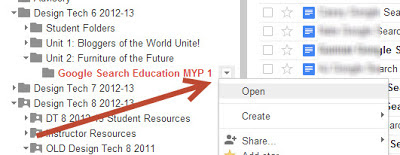
Now instead of opening tabs, I use the folder drop down option to open the folder.  Doing it this way in Google Drive changes the folder to a new view that gives me a preview of each file complete with data including when it was edited last and that allows me to quickly switch between documents by selecting them on the left side.  I've eliminated multiple open tabs and can quickly switch back and forth between student work all within the same folder view.  Now my open tabs are reserved for resource documents or rubrics.  In this view, Google allows me to even minimize the folder name giving me back extra space to see each document in a larger viewing window.
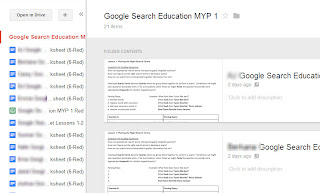
Now I have each and every file in one place ready and available for me to view, give feedback and grade without having to manage multiple tabs, hunt for student files or waste time re-opening files I had accidentally closed.

What a huge savings in time and effort.  Now I'm literally going strait to a folder to grade without much effort and all my students files are there waiting.